Start from a ready-made workflow
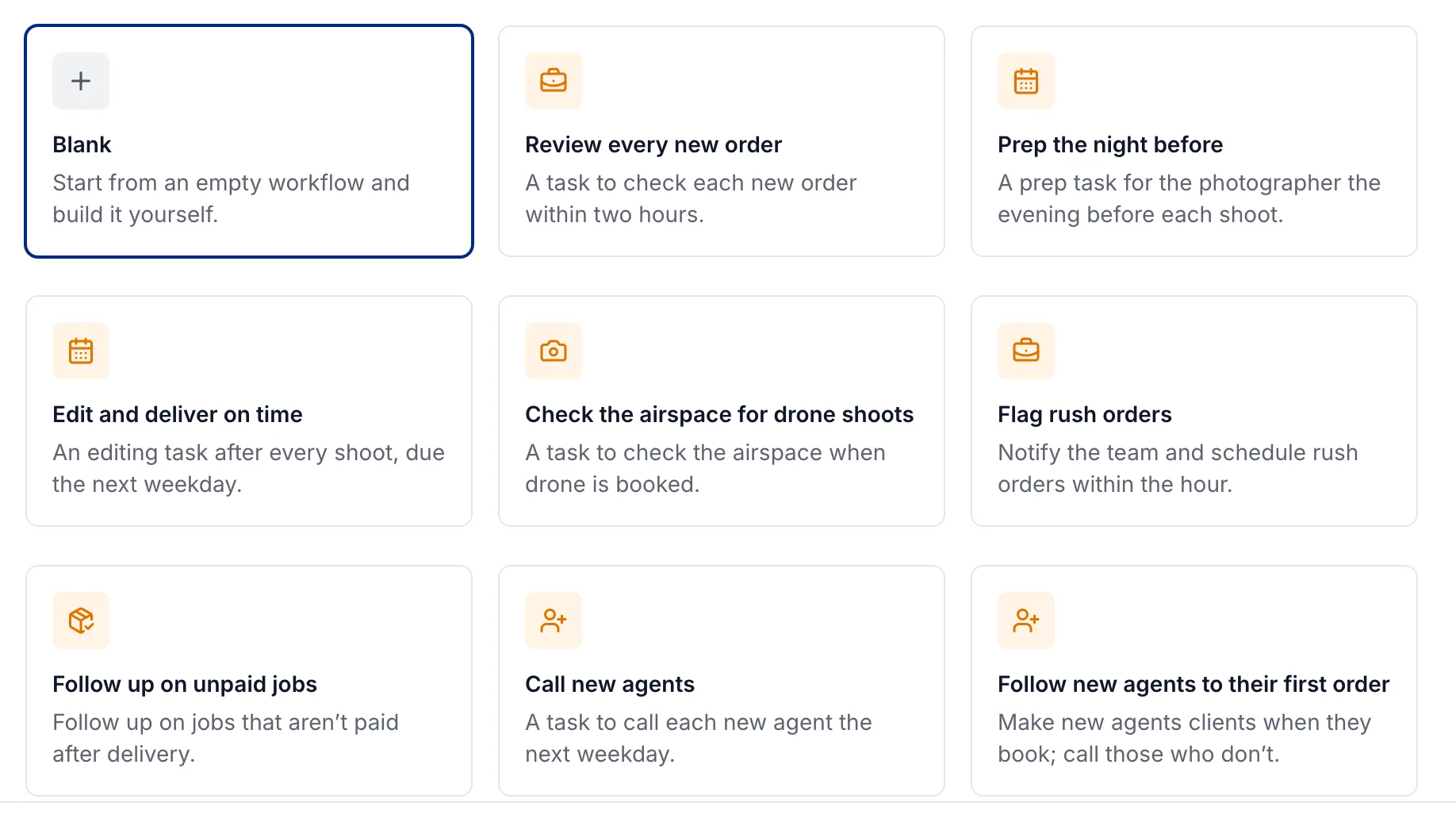
Choose a template built for real estate photography, like reviewing every new order, prepping the night before an appointment, or calling new agents. Every step can be changed to fit how you work.
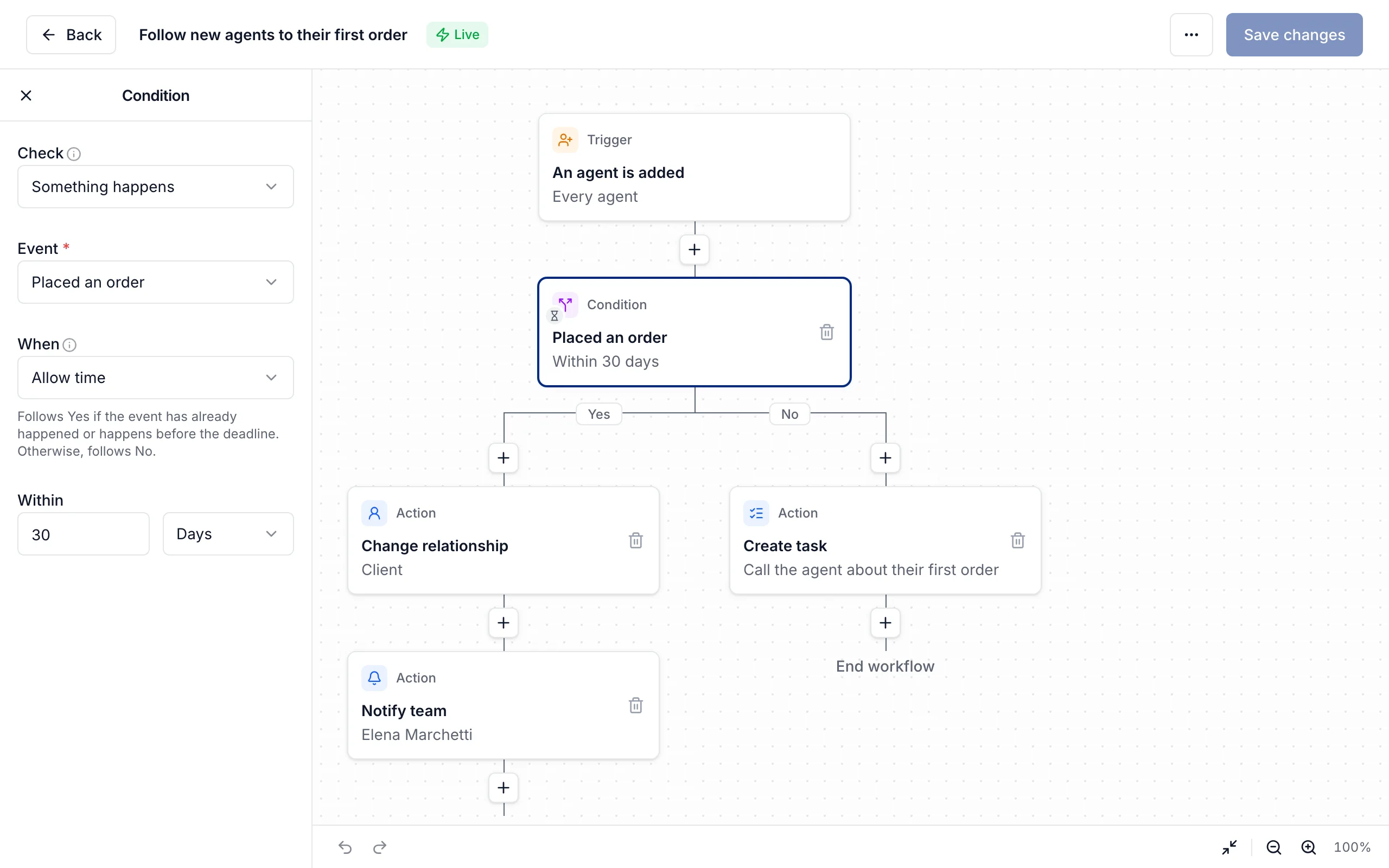
Create tasks, remind your team, follow up on unpaid jobs, and keep track of new agents automatically. Start with a template and change any step.
Reminding the team of every step
Create a workflow that adds and assigns tasks when an appointment is booked.
Chasing unpaid jobs from memory
Set a workflow to notify your team when a delivered job remains unpaid.
New agents who never book
Create a task to contact new agents who have not placed an order after a period you choose.
Choose a trigger, add tasks or notifications, and set when each step should happen.
Choose a template built for real estate photography, like reviewing every new order, prepping the night before an appointment, or calling new agents. Every step can be changed to fit how you work.
Schedule a check after delivery or before an appointment. If a job is still unpaid or a new agent has not ordered, create a task or notify your team.
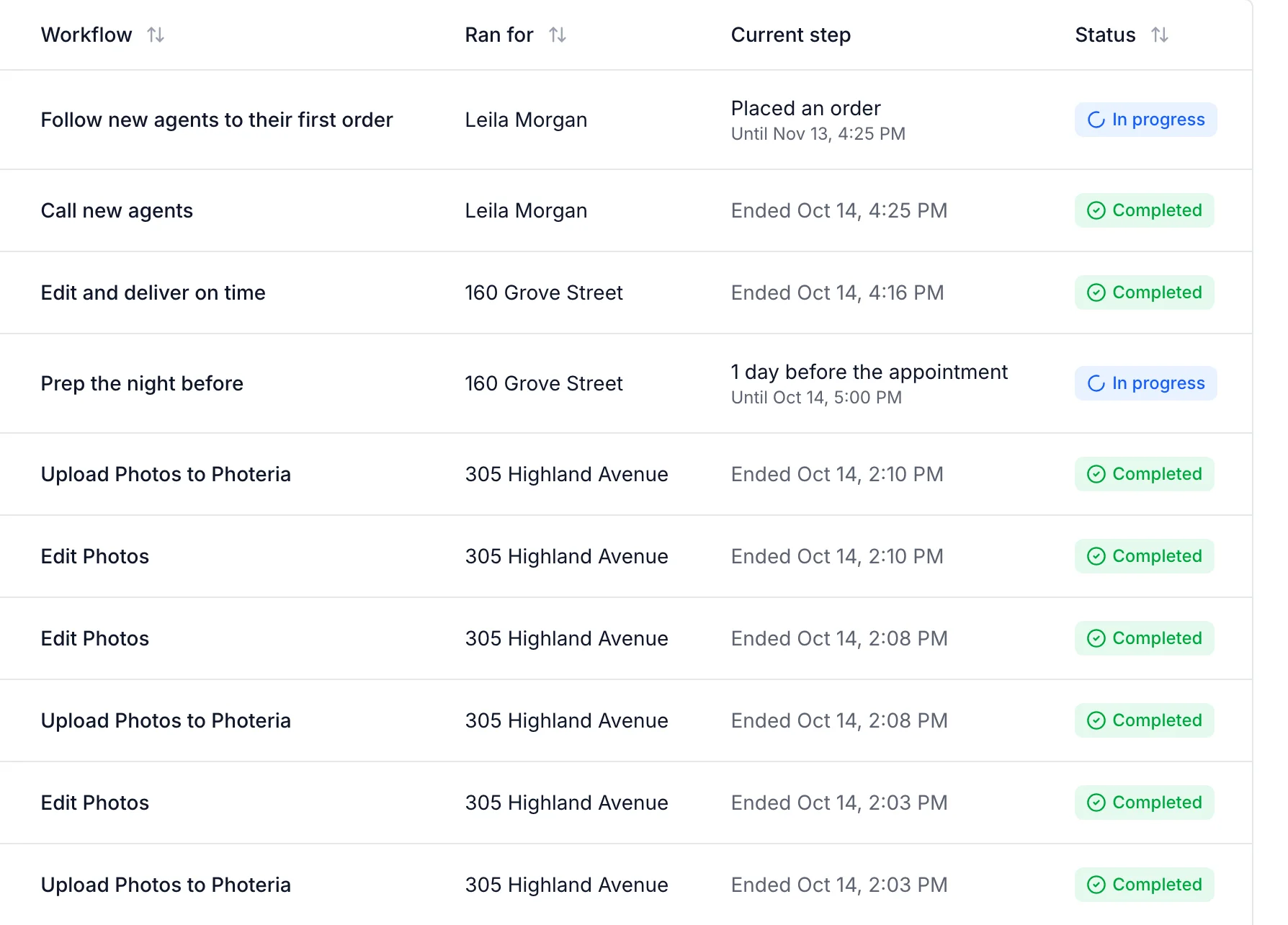
See which workflows have started, the job or agent each applies to, and whether it is waiting or complete. Open a workflow run to review its steps.
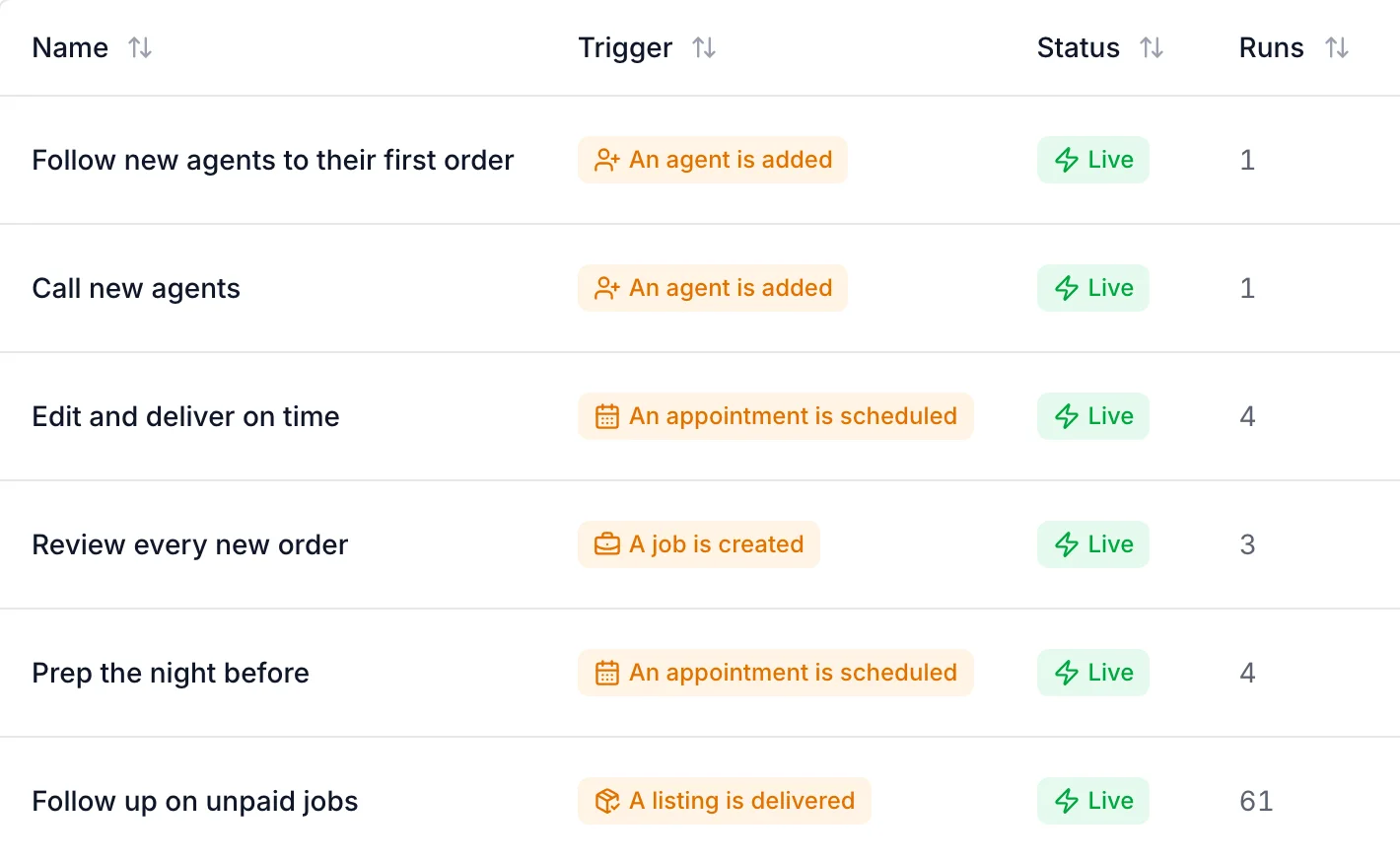
Review active workflows, configure task assignments, and track the work on your task board.
See what starts each one, whether it’s live, and how many times it has run.
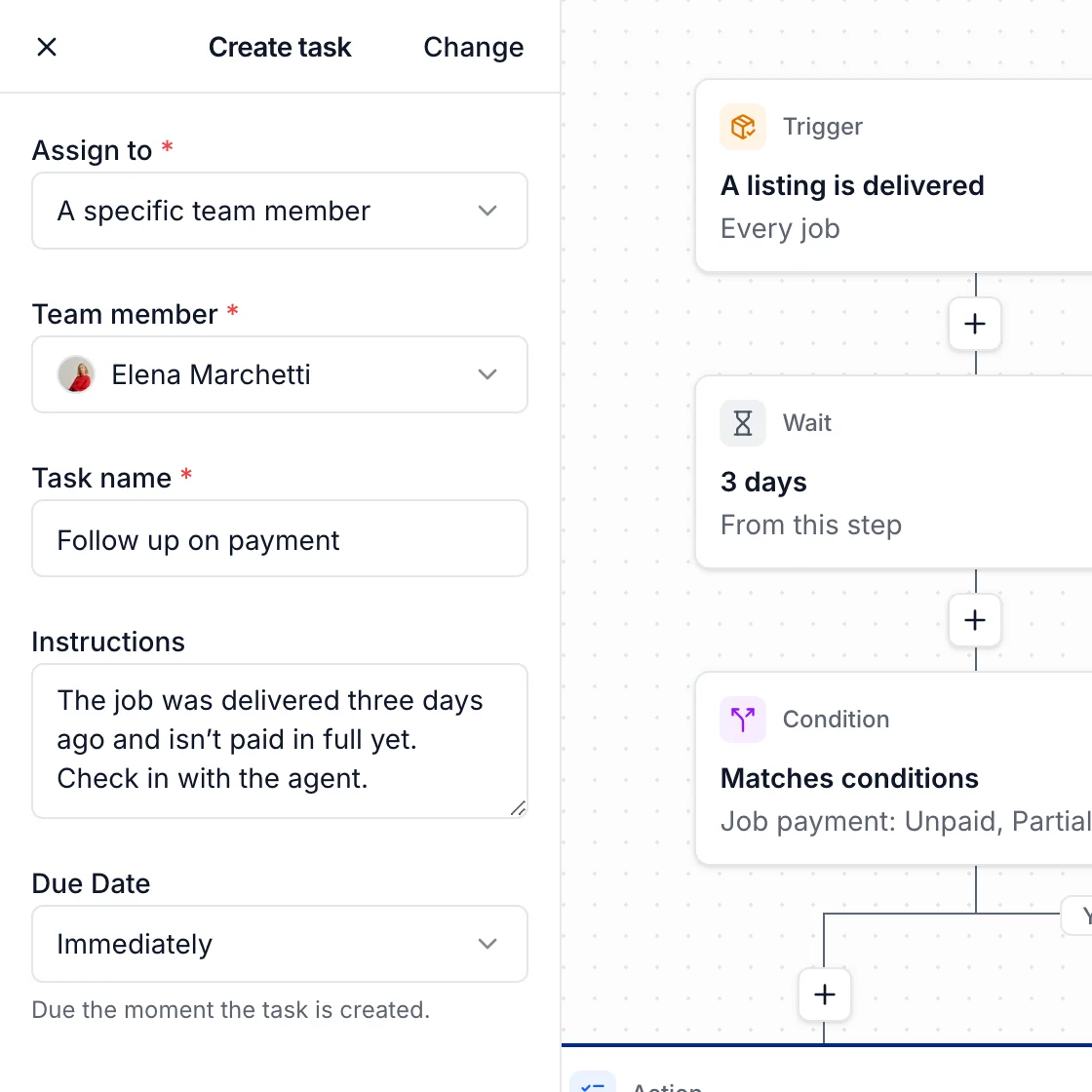
Assign each task, write its instructions, and set when it’s due.
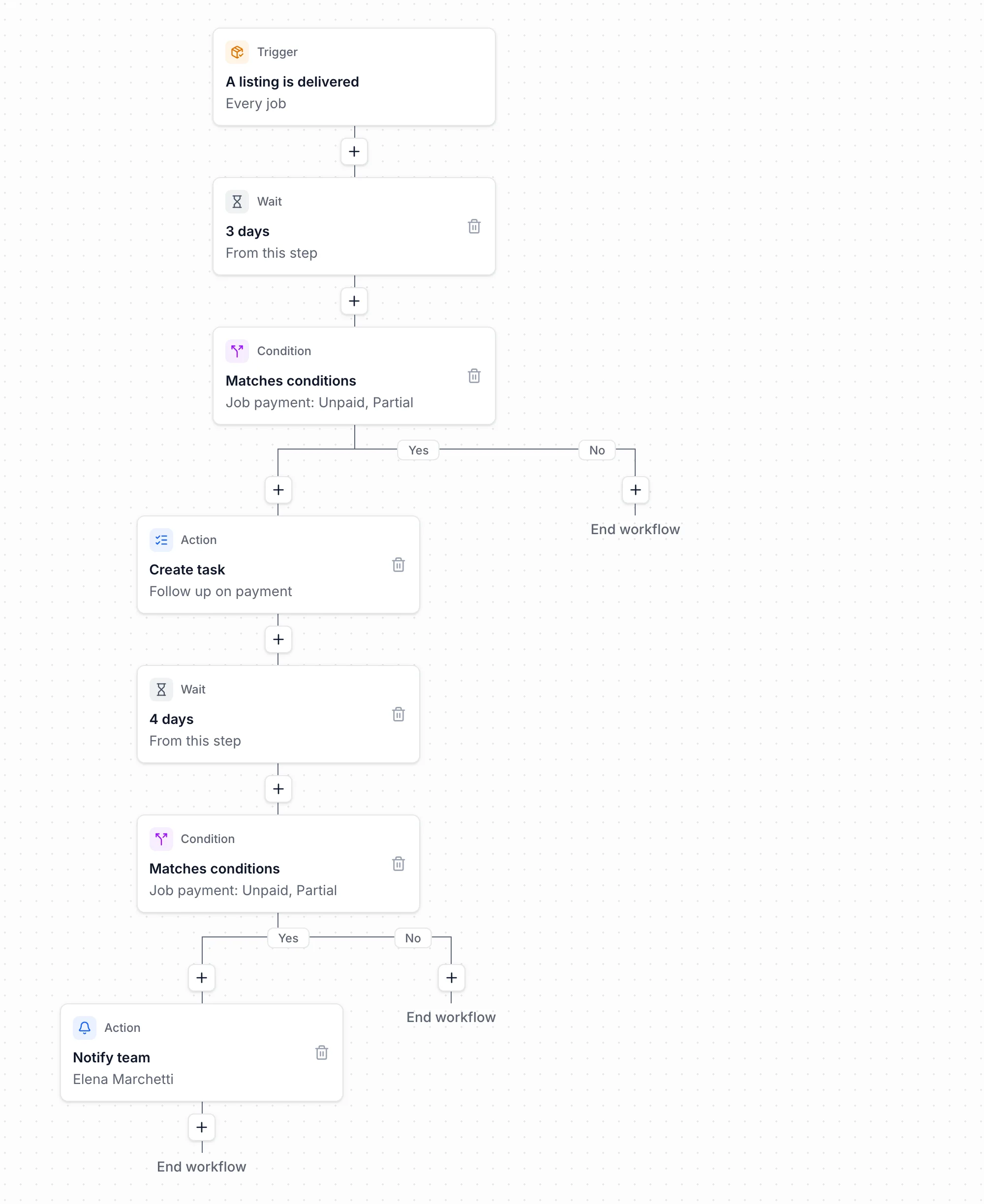
Wait days or hours, or until a set time before or after the appointment.
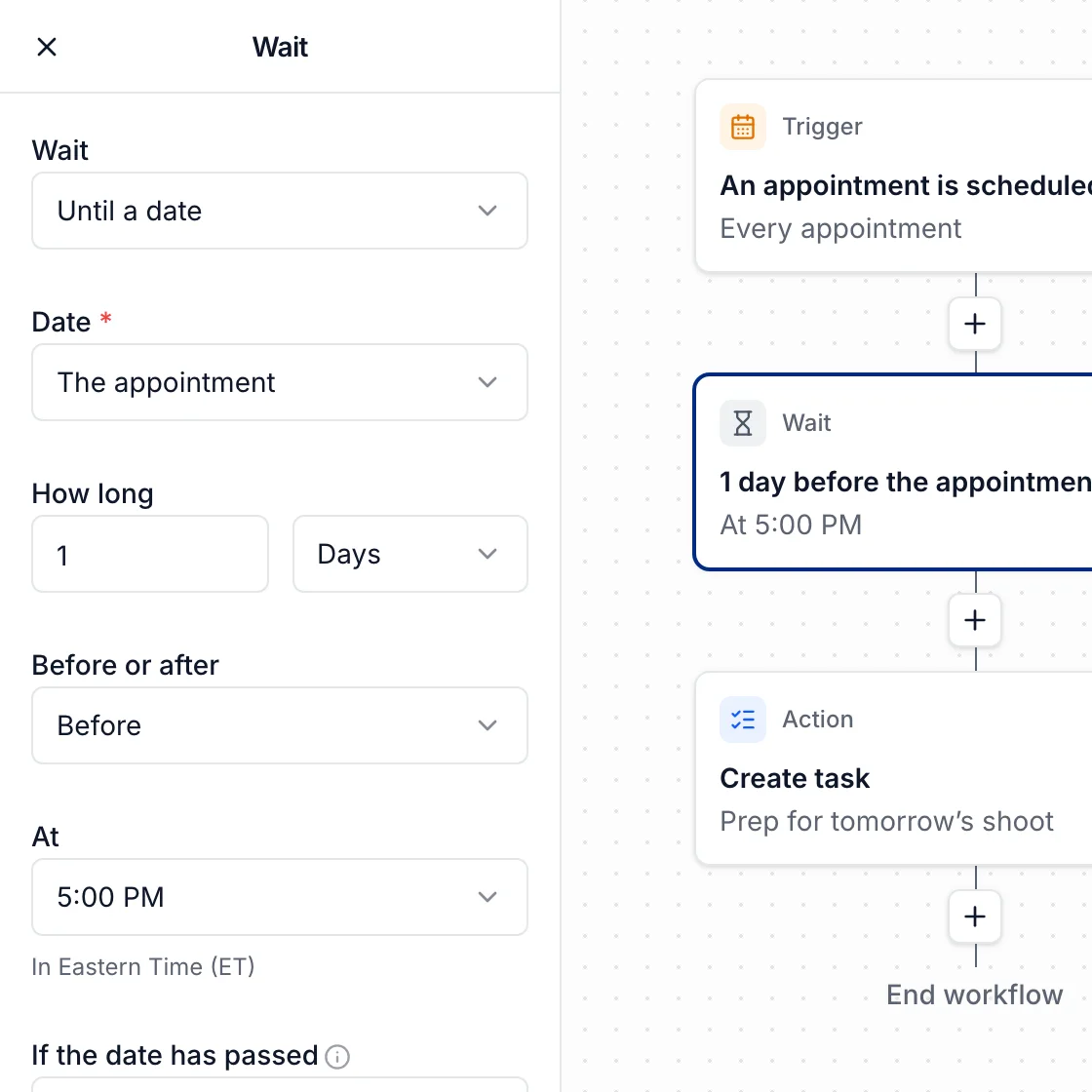
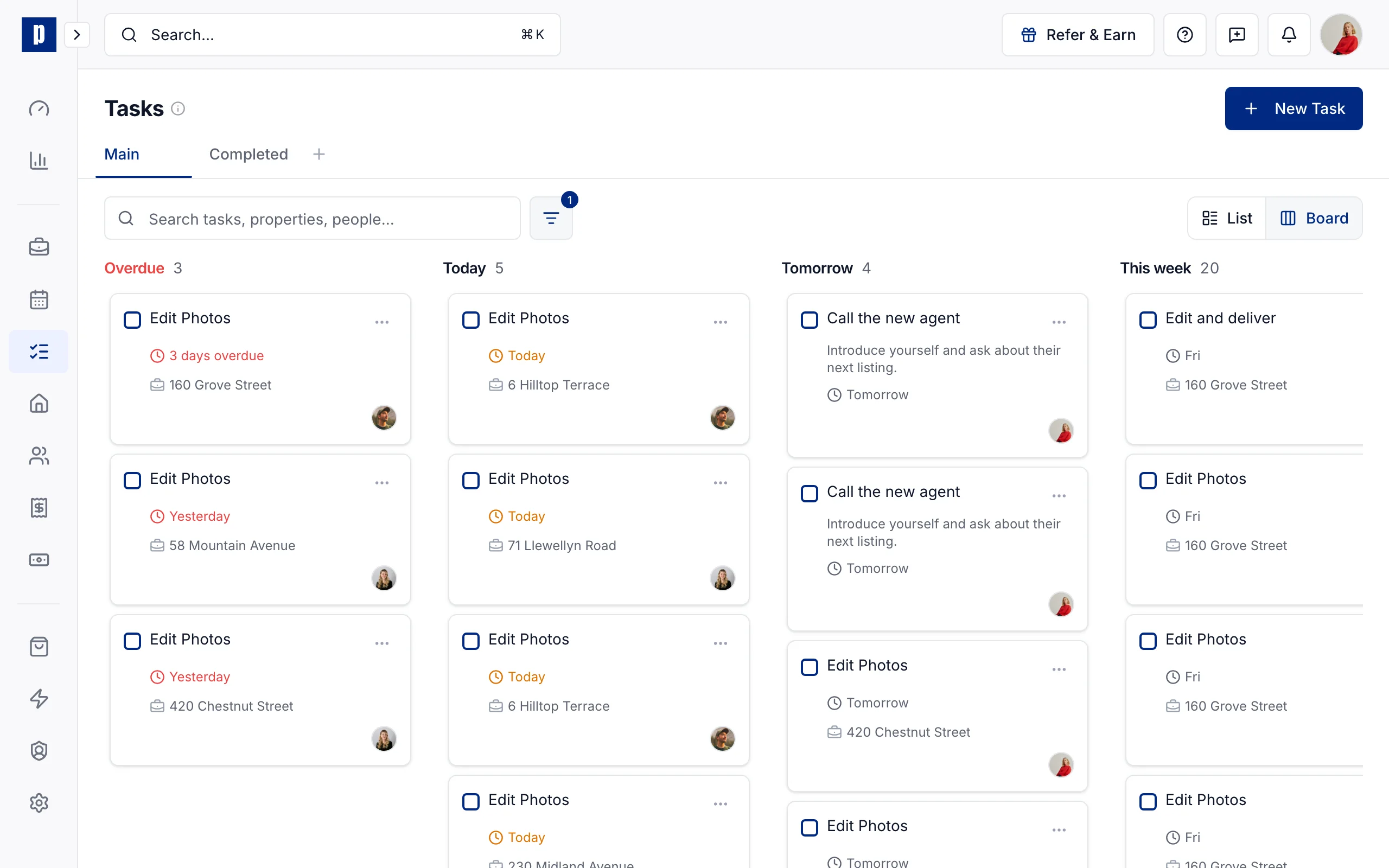
Review automatically created tasks alongside other team tasks on your board.
Control when workflows start, who gets notified, and how tasks are assigned.
Book a free 30-minute call. We'll help you choose templates and configure tasks, notifications, and follow-up for your business.
No. Start from a template, like following up on unpaid jobs, prepping the night before an appointment, or calling new agents, and change any step to fit how you work. You can also start from a blank workflow.
A new job, a service added to a job, a delivered listing, a scheduled appointment, a new agent, or a tag added to an agent. You can limit it to certain services, clients, brokerages, or payment status.
Yes. Wait for a number of hours, days, business days, or weeks, until a set time before or after an appointment, or until a time of day.
Yes. A condition checks things like whether the job is paid in full, the listing is delivered, or the agent placed an order, right away or within a time you set. Each answer can lead to different steps.
Active workflow runs keep their original steps. Your changes apply to new runs.
Yes. The activity page lists every run, what it ran for, and where it is now. Open a run to see each step it took.
Yes. Change the trigger, conditions, steps, timing, and task assignments to match how your team works.
No. Workflows are included in the price of $8 per delivered listing, with no limit on how many you make.
Book a free demo or start free and explore Photeria yourself.